Screen Translation
Translate text on any screen in real time. Works with any app — games, social media, web browsers, documents, and more.
How It Works
Setup — Choose Your Settings
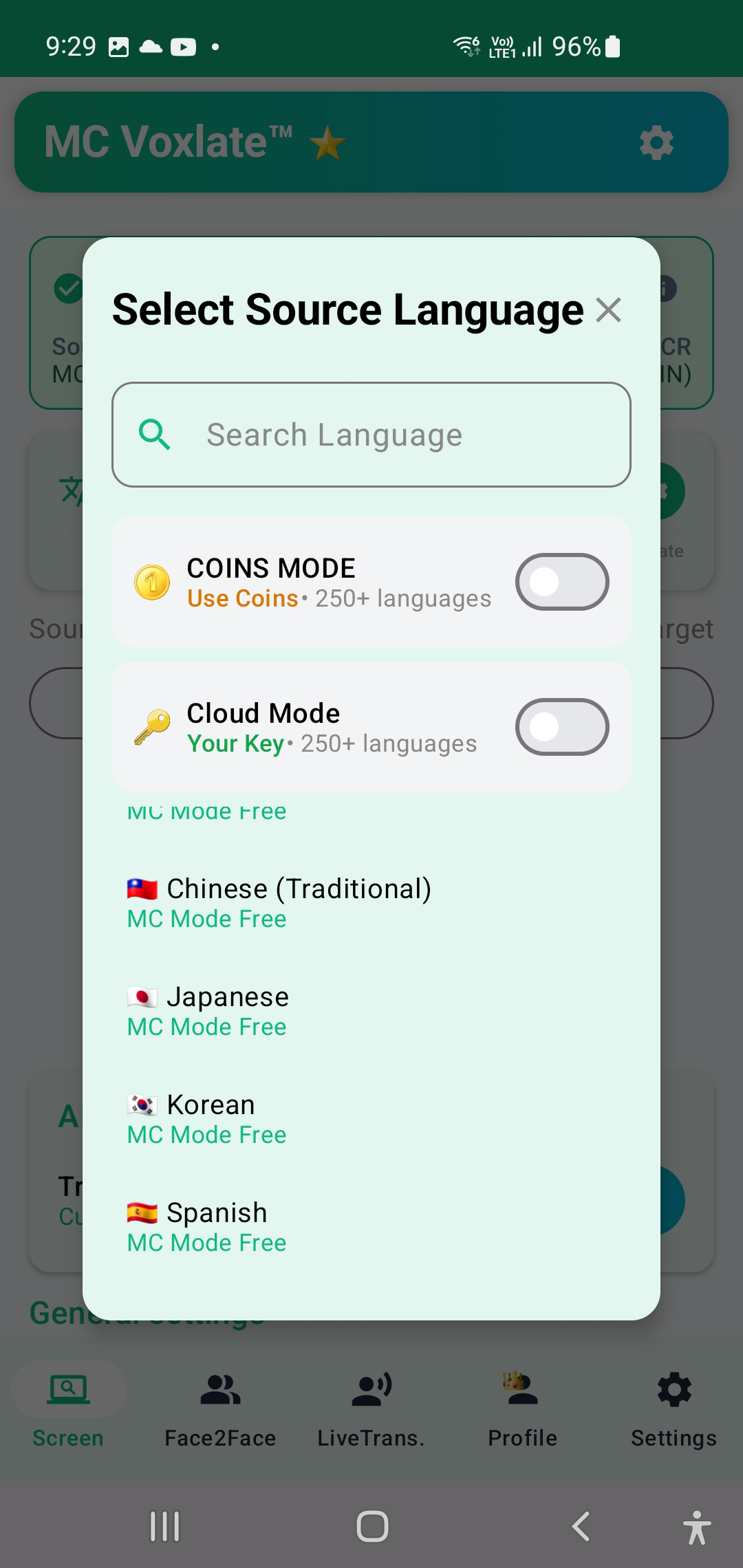
Source Language (From)
The language of the text on your screen that you want to translate. For example, if you're reading a Japanese game, select Japanese as the source language.
Target Language (To)
The language you want the translation to appear in. For example, select Thai or English as your target language.
OCR Engine (Text Recognition)
Start the Translation Service
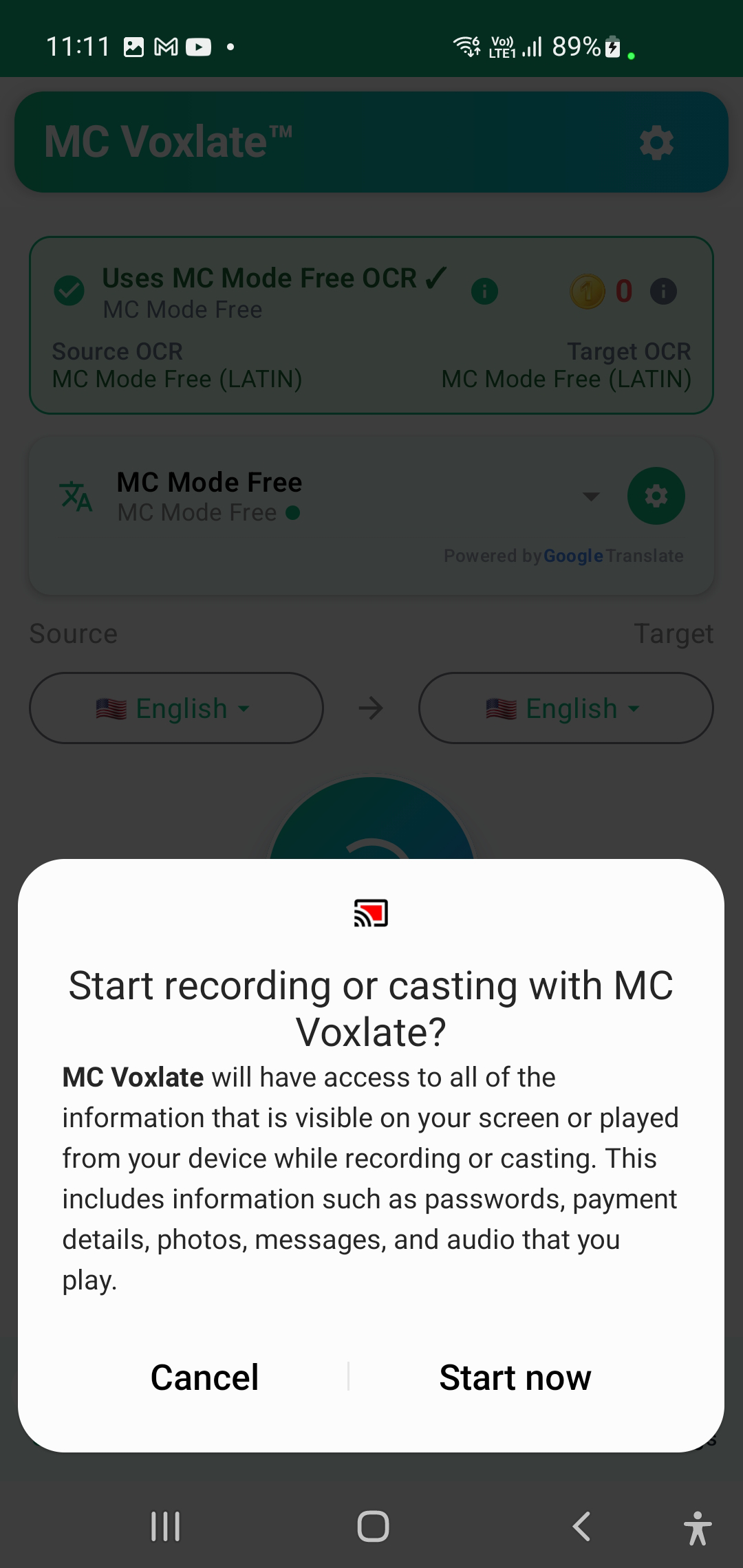
Tap the Start Button
After selecting your languages and engines, tap the Start button on the Home screen.
Grant Permissions
The first time you start, Android will ask for Screen Capture and Display Over Other Apps permissions.
Privacy Note
Screen images are processed on-device for OCR. Only the extracted text is sent to the translation engine. Images are never stored or sent to any server.
Using the Floating Button
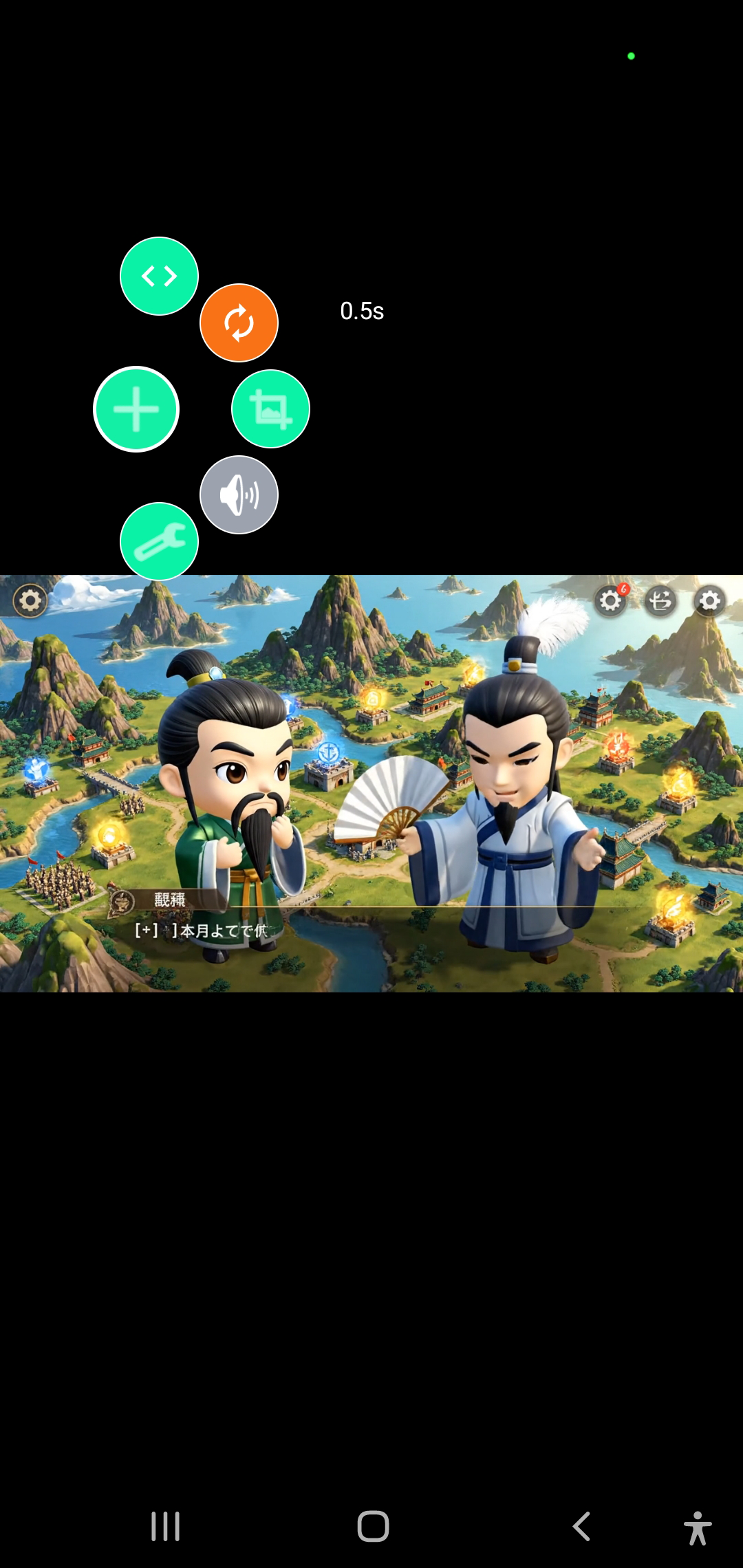
Switch to Any App
Once started, a floating button appears. Switch to any app you want to translate — a game, LINE, Twitter, a web browser, a PDF, anything.
Tap to Translate
Tap the floating button once to capture, read all text with OCR, translate, and show the result as an overlay.
Move the Button
Drag the floating button to any position. You can also hide it at the edge and double-click to show it again.
Reading the Translation

Translation Overlay
The translated text appears directly on your screen as a semi-transparent overlay over the original text.
Dismiss the Overlay
Tap anywhere on the overlay or tap the floating button again to dismiss and return to normal view.
Auto Mode (Advanced)

Auto Mode automatically captures and translates at regular intervals (0.5 to 60 seconds). Useful for games, videos, and live content.
Note: Auto Mode uses more battery and, if using Coins-based engines, will consume Coins for each capture cycle.
Area Selection (Advanced)
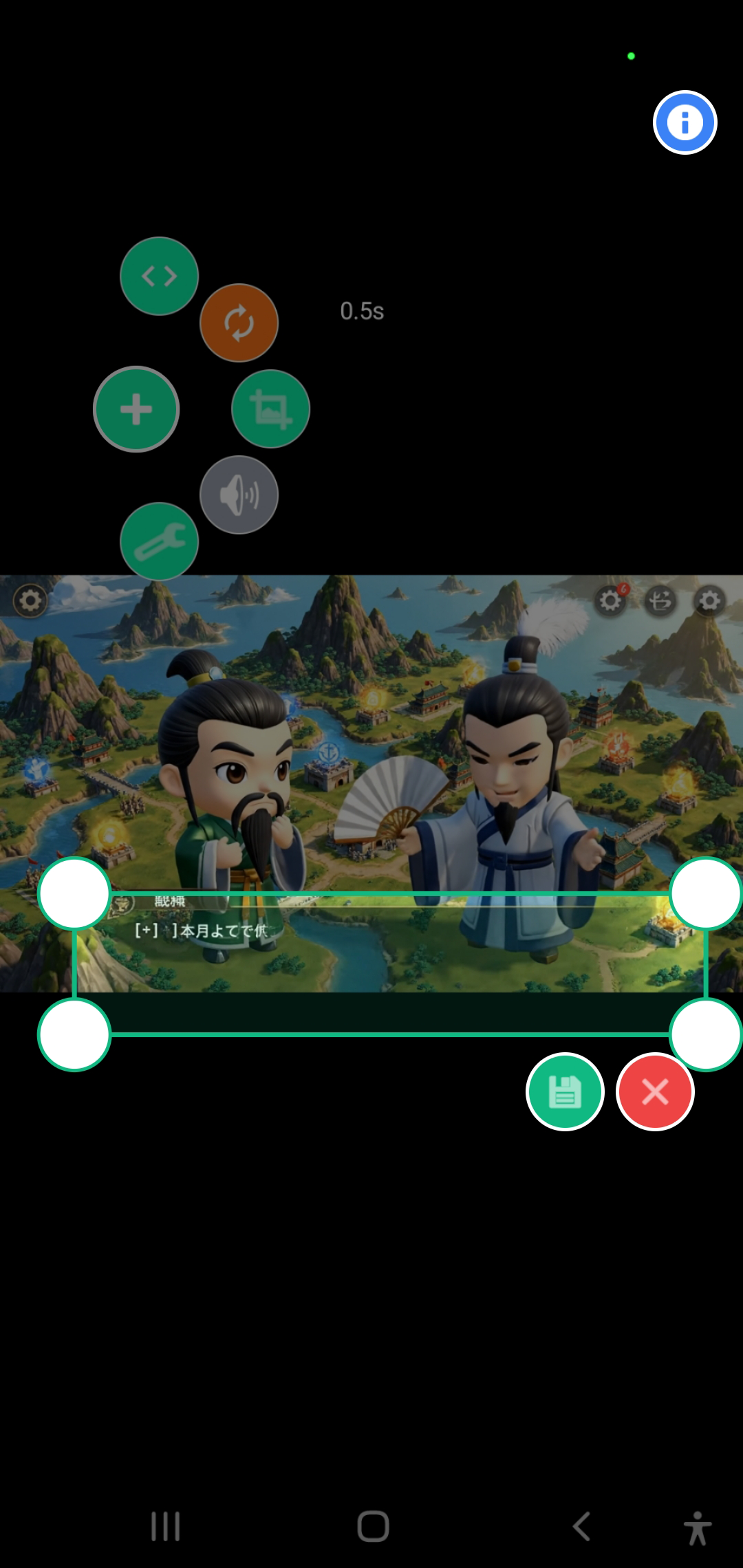
Select a specific area to translate instead of the entire screen. Useful for game dialogue boxes or specific UI sections.
💡 Tips for Best Results
Face-to-Face Translation
Have a real-time conversation with someone who speaks a different language. You speak — the app listens, translates, and speaks the translation aloud.
How It Works
Both directions work — each person speaks their language and hears the translation in theirs.
Choose Translation Mode
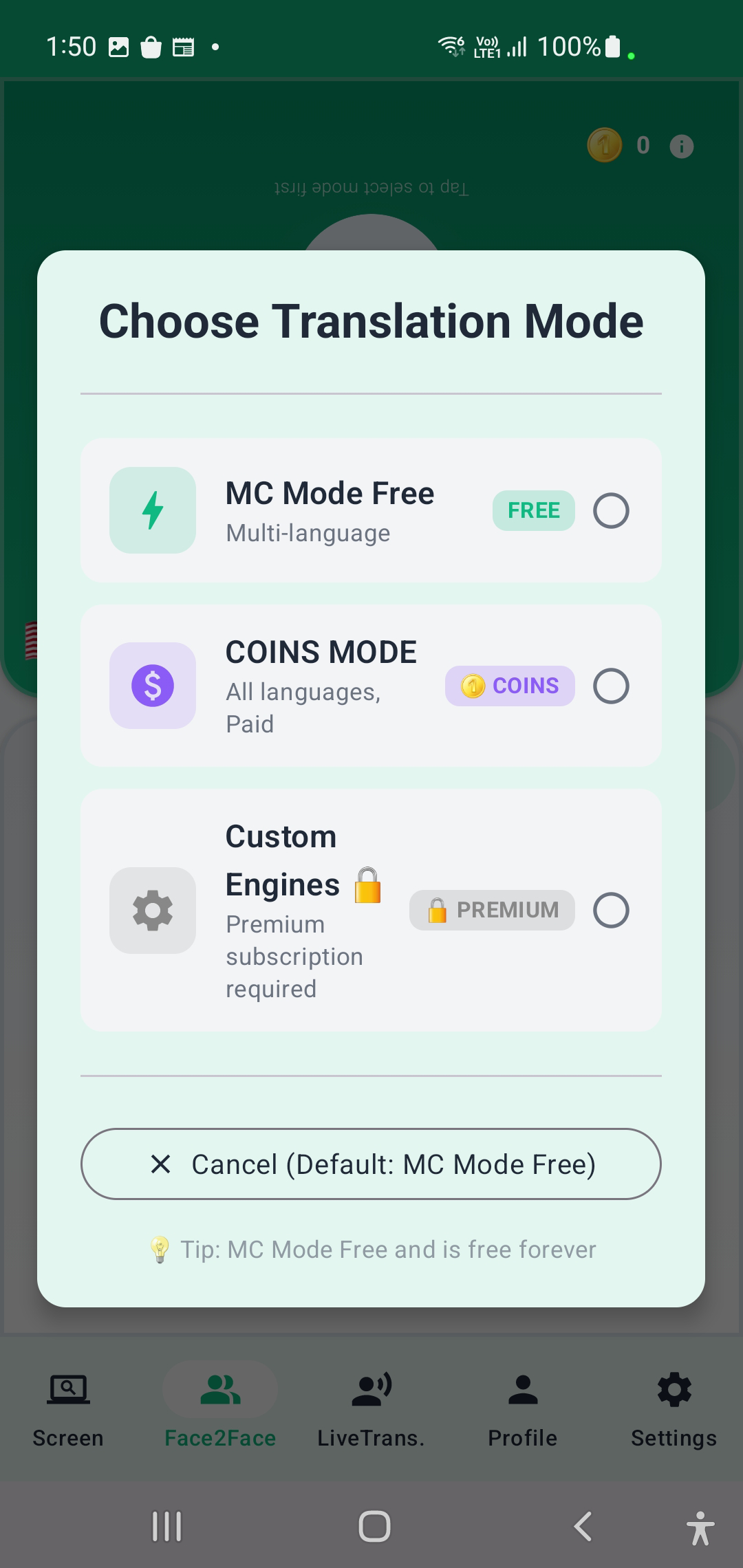
MC Mode Free
Completely free and works offline. Uses built-in speech recognition, offline translation, and device voice output.
COINS MODE
Premium quality using cloud AI services. Best translation accuracy with natural-sounding voices. Great for business meetings and rare languages.
Custom Engines
Mix and match engines per person. Full control over STT, Translation, and TTS engine for each person independently.
Select Languages
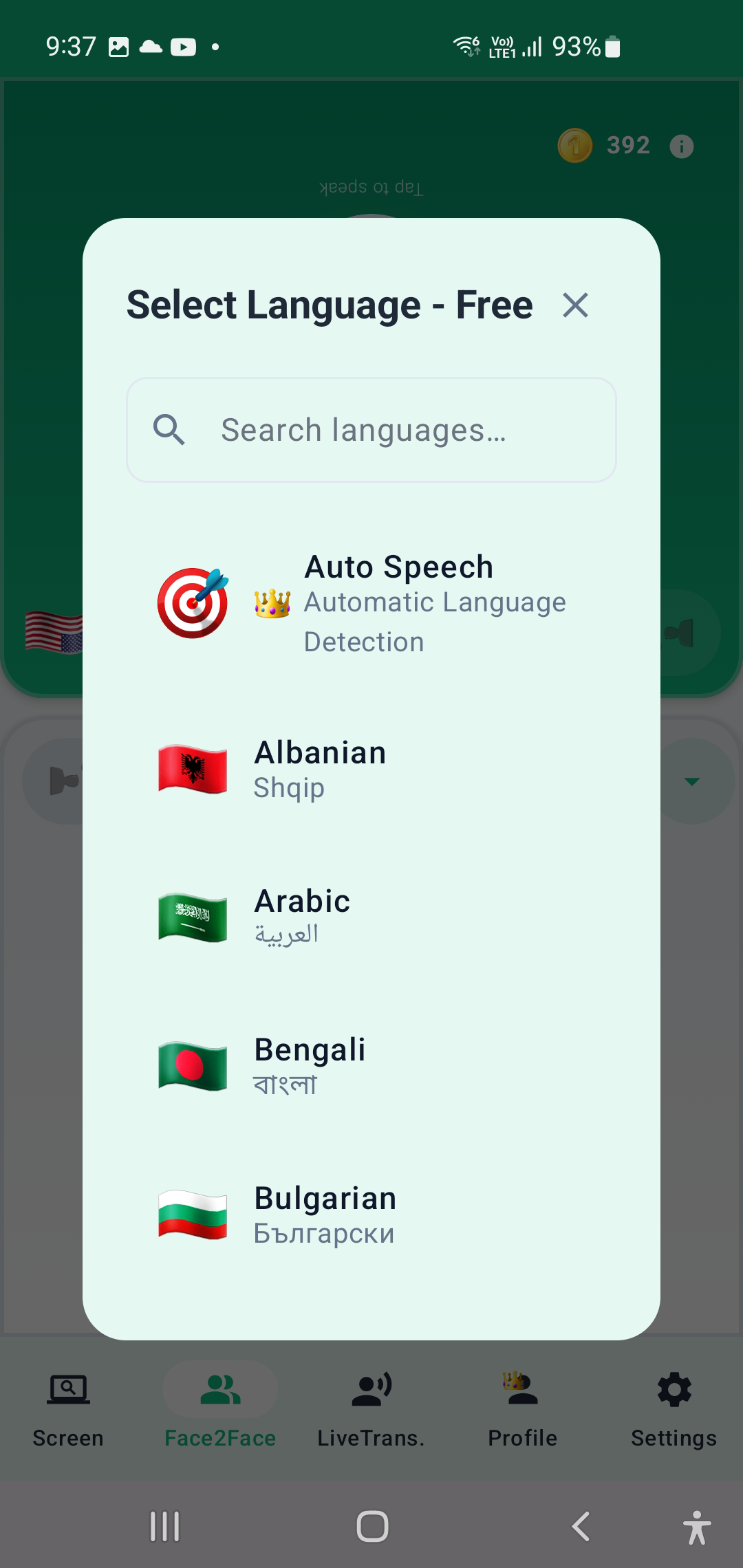
Person 1 Language
The language that Person 1 (you) speaks, e.g. Thai.
Person 2 Language
The language that Person 2 (the other person) speaks, e.g. English or Japanese.
Tip: Auto Language Detection
In COINS and Custom modes, the app can automatically detect which language is being spoken and route it correctly.
Choose a Speaking Mode
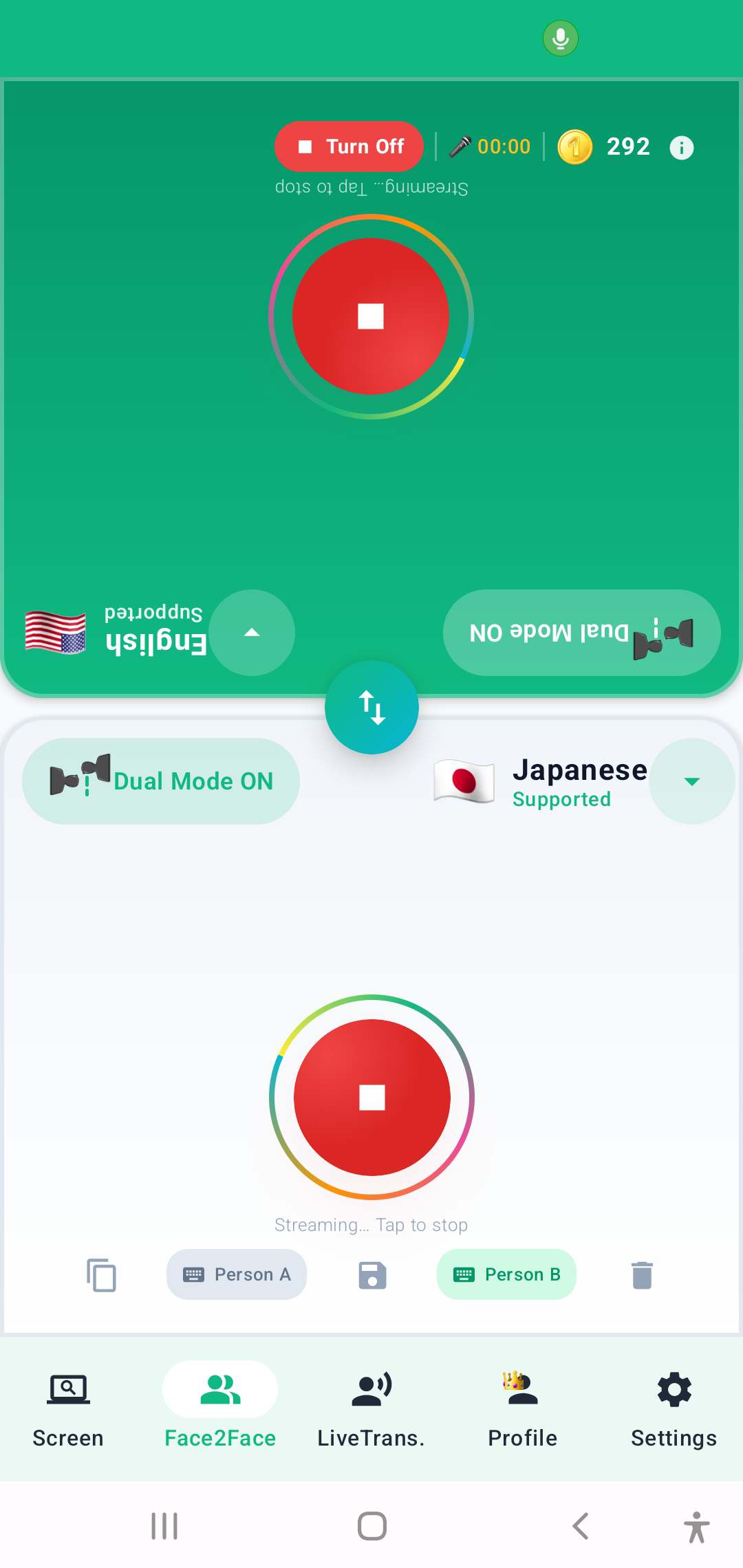
Manual (Push-to-Talk)
Tap the mic button when you want to speak. Best for noisy environments and maximum control.
Auto Speech
Automatically detects when someone starts speaking using Voice Activity Detection (VAD). Hands-free option.
Dual Mode (Simultaneous)
CoinsBoth people can speak at any time. The app uses continuous streaming speech recognition and automatically detects which language is being spoken.
During the Conversation
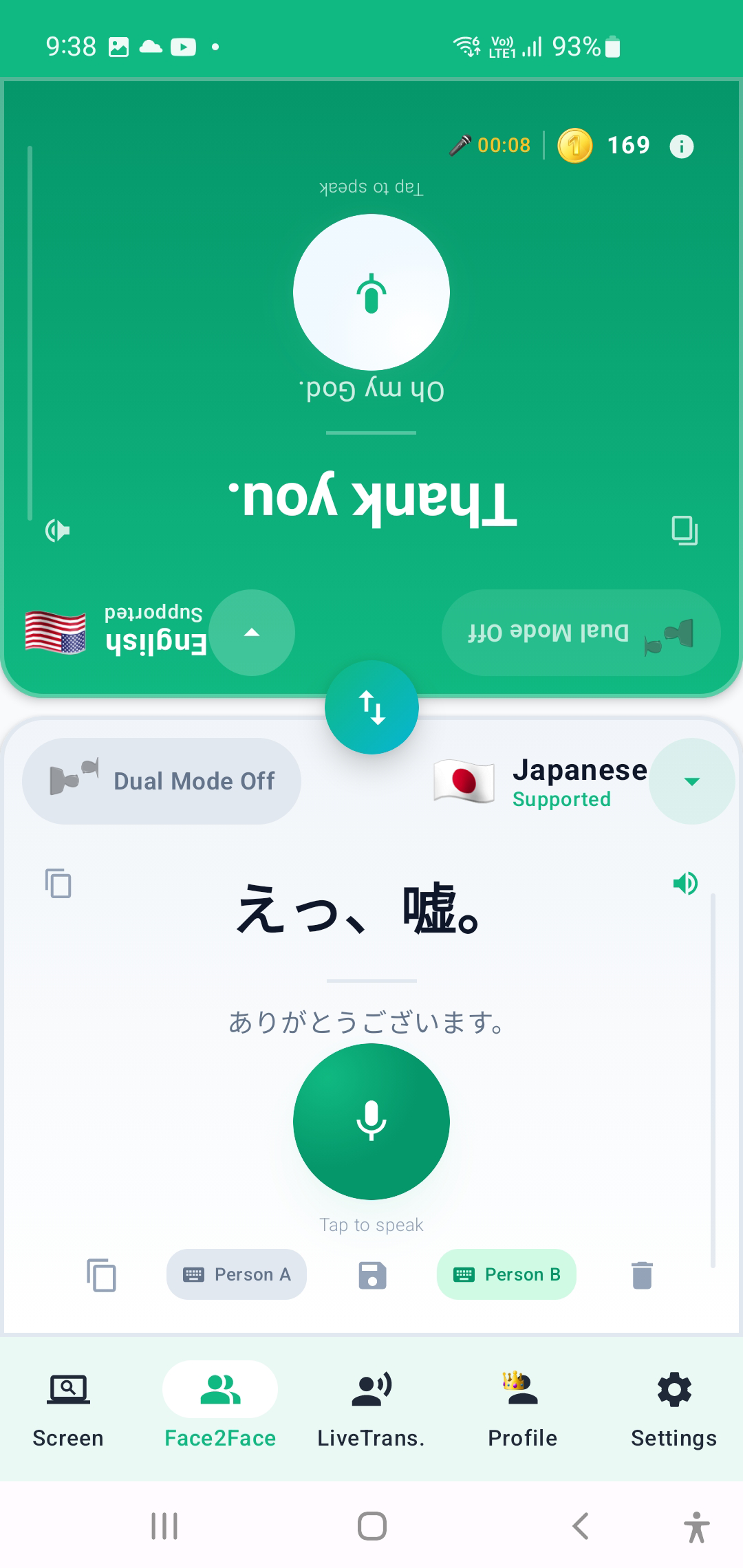
Conversation View
Chat-style bubbles for each speaker, showing original speech and translation. Person 1 on the left, Person 2 on the right.
Export Conversation
Tap the export button to save the entire conversation as a text file with timestamps.
Live Transcription
Real-time speech-to-text transcription with instant translation. Perfect for lectures, meetings, interviews, and any situation where you need a written record.
How It Works
Choose Your STT Engine
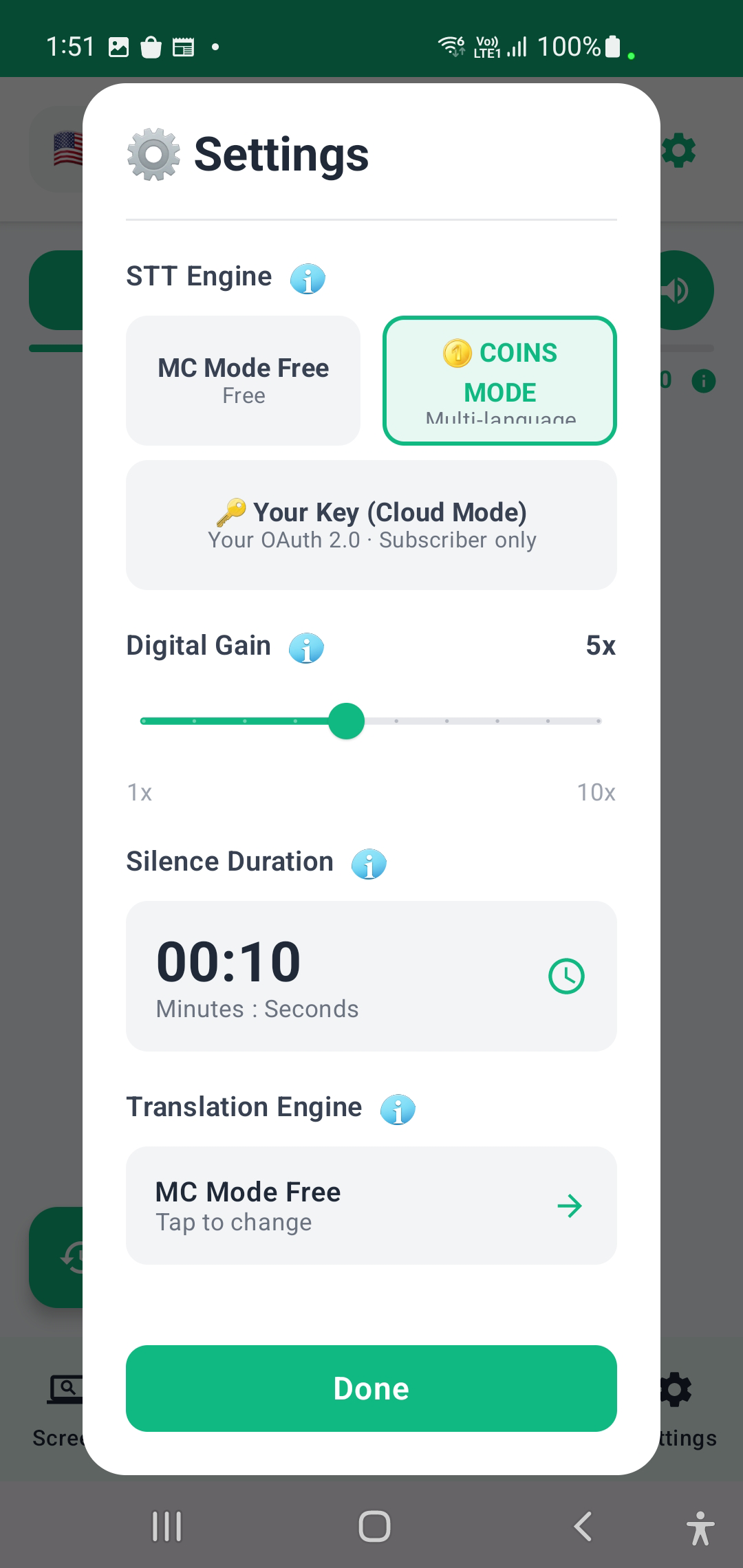
MC Mode Free
Built-in speech recognition. Free with a daily quota of 10 minutes (resets at midnight). Unlimited for premium members.
COINS MODE
Premium cloud-based speech recognition. Highest accuracy for all languages. Coins per second of audio while recording.
Your Key (Cloud Mode)
Same premium cloud accuracy, but using your own API credentials. No Coins needed. Billed directly by your cloud provider.
Configure Settings
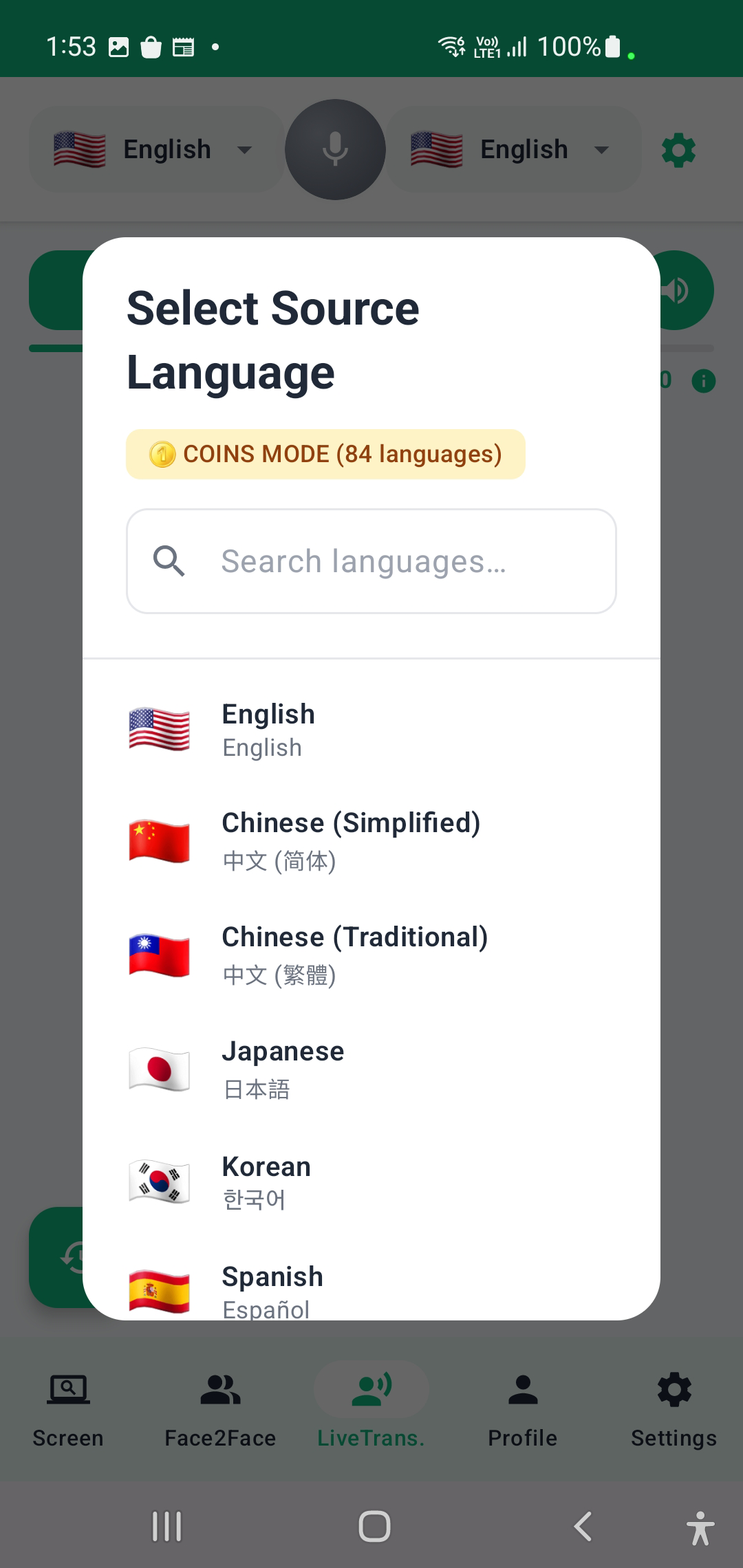
Translation Mode
Digital Gain (Microphone Boost)
Amplifies the microphone input from 1x to 10x (default: 5x). Increase when the speaker is far from the phone.
Silence Duration (Segment Break)
How long the app waits in silence before creating a new text segment. Default: 10 seconds for MC Mode Free, 5 seconds for COINS MODE.
Start Recording
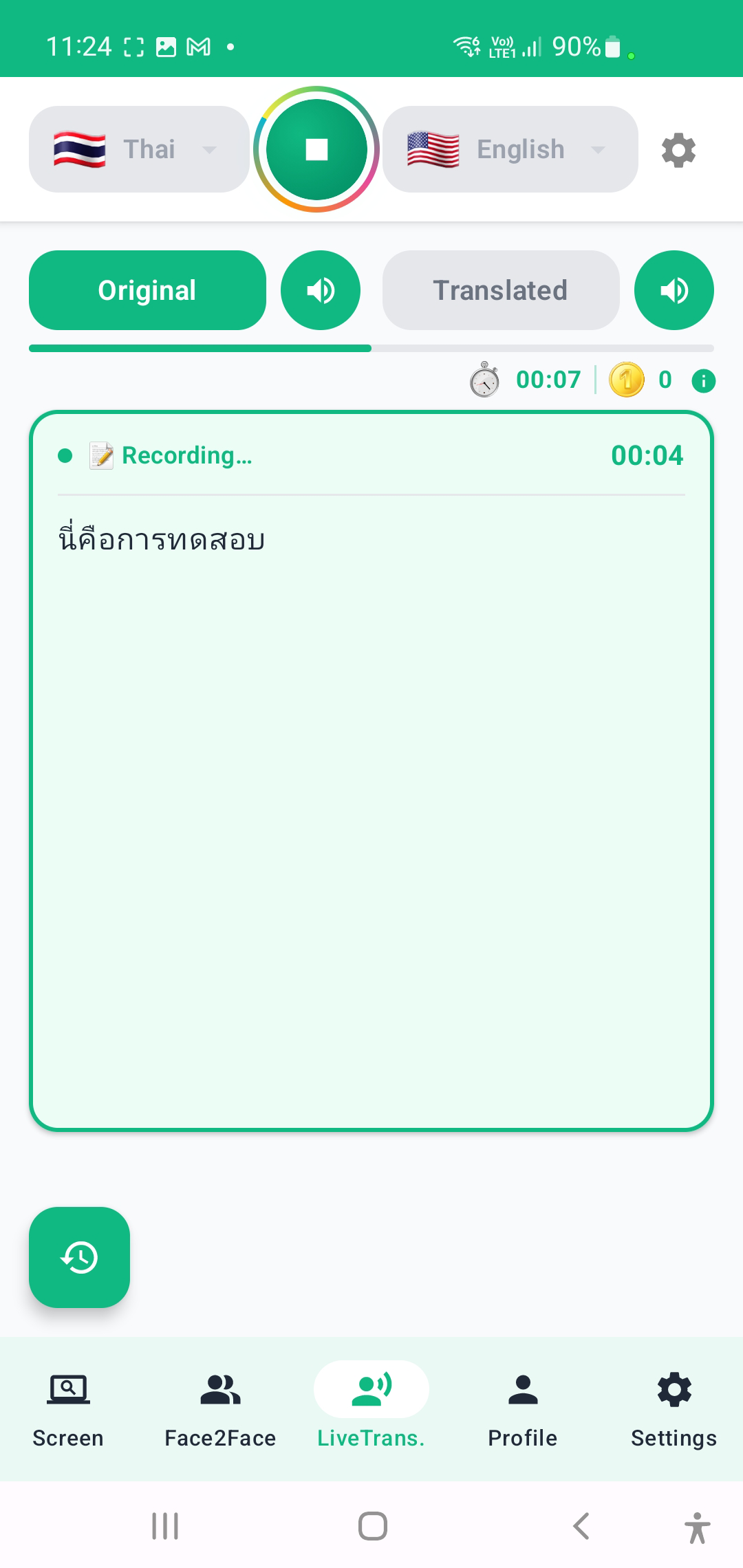
Tap Start
Tap the Start button to begin. A notification appears so you can see the recording status even outside the app.
COINS MODE Warning
A confirmation dialog shows the cost breakdown before recording starts. The app will auto-stop if your Coins balance runs out.
Reading the Transcription
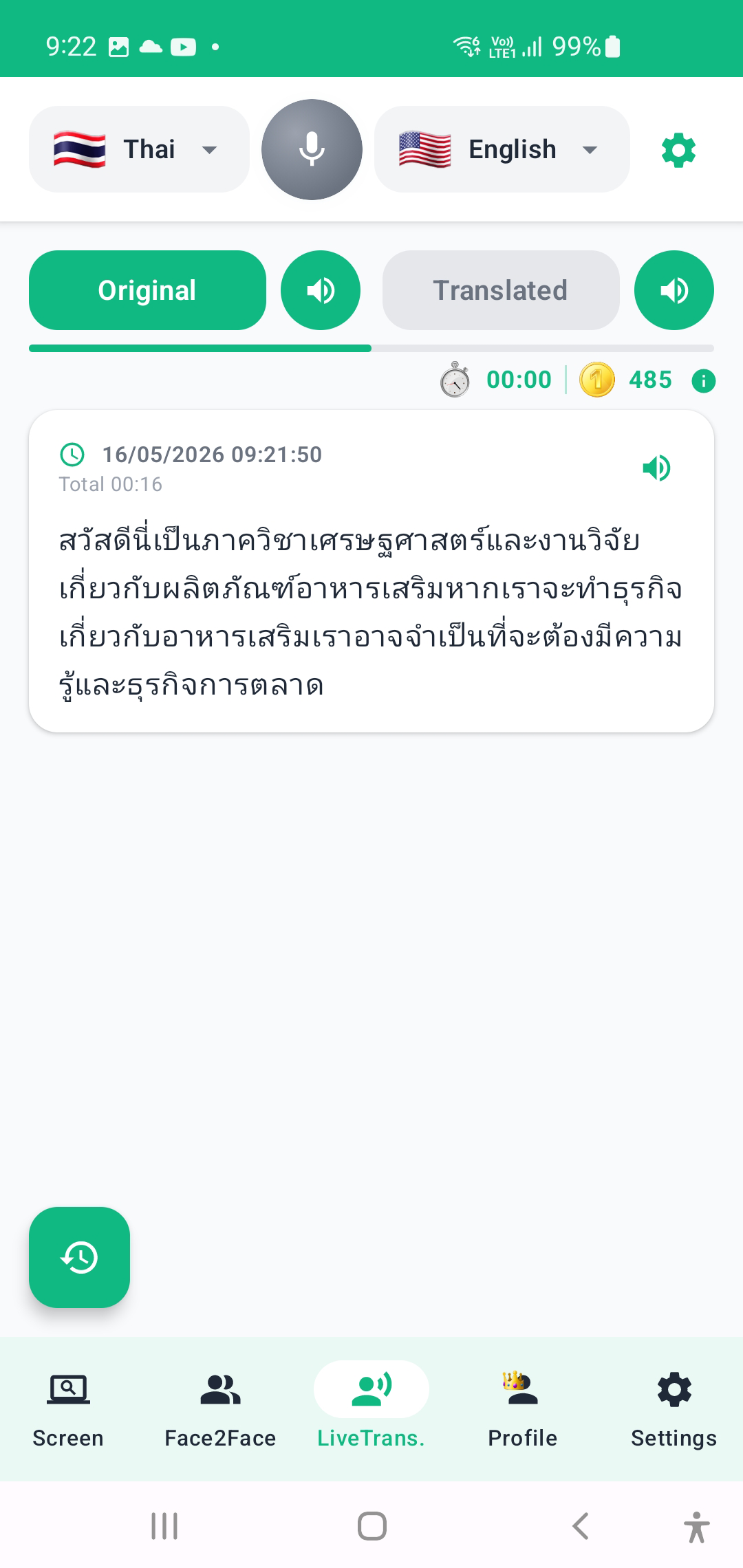
Original & Translated Tabs
Two tabs: Original (recognized speech) and Translated (translation). Both update in real time.
Stop & Session Summary
Tap Stop to end recording. In COINS MODE, a session summary shows total time, Coins used, and remaining balance.
Transcription History
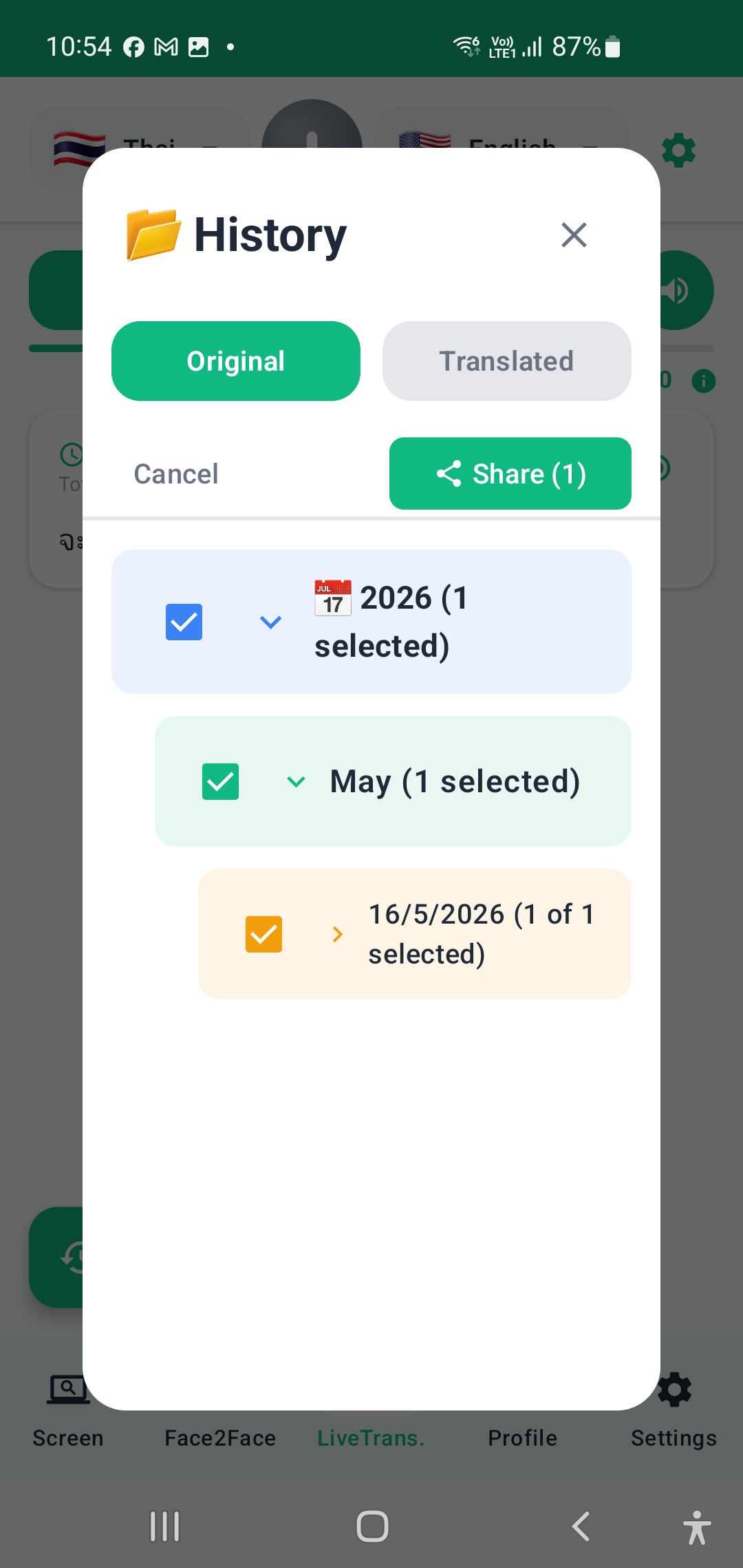
- Browse by date — Grouped by Year → Month → Day.
- Share — Export as text files.
- Delete — Remove individual or multiple transcriptions.
Quota & Free Usage
MC Mode Free Quota
- Free users: 10 minutes per day (resets at midnight)
- Premium members: Unlimited recording time